
Set up your device
Find your device below and follow the steps.
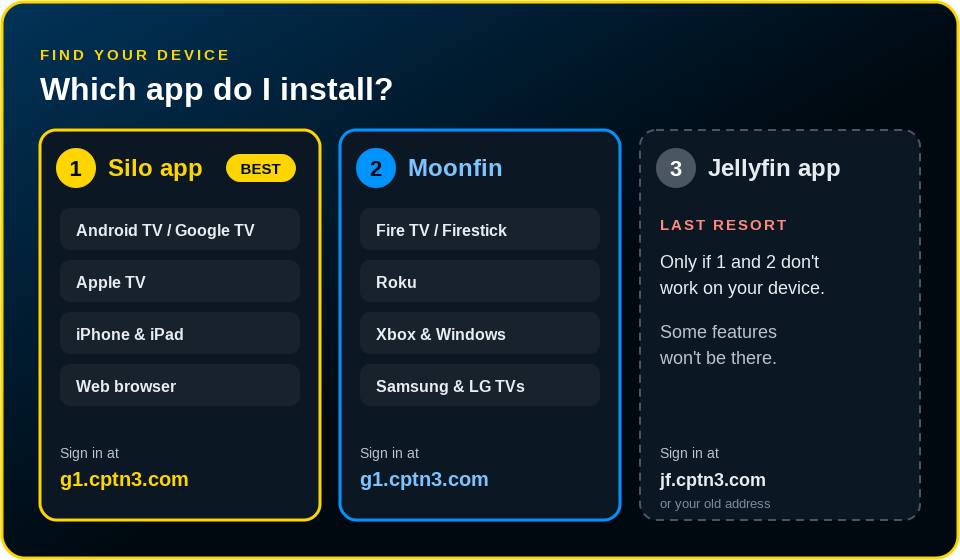
📺 Android TV or Google TV
Section titled “📺 Android TV or Google TV”- Open the Google Play Store on your TV.
- Search for Silo and install it. (Open in Google Play)
- Open Silo and sign in at
g1.cptn3.com.
🍎 Apple TV, iPhone or iPad
Section titled “🍎 Apple TV, iPhone or iPad”- Open the App Store.
- Search for Silo Media and install it. (Open in the App Store)
- Open Silo Media and sign in at
g1.cptn3.com.
💻 Computer (Windows, Mac or Chromebook)
Section titled “💻 Computer (Windows, Mac or Chromebook)”- Open your web browser.
- Go to g1.cptn3.com.
- Type your username and password. That’s it, no app needed.
Tip: bookmark the page so it’s one click next time.
🔥 Amazon Fire TV or Firestick
Section titled “🔥 Amazon Fire TV or Firestick”- On your Fire TV home screen, open the Appstore (or search).
- Search for Moonfin and install it.
- Open Moonfin and sign in at
g1.cptn3.com.
📡 Roku
Section titled “📡 Roku”- Open the Roku Channel Store.
- Search for Moonfin and add it.
- Open Moonfin and sign in at
g1.cptn3.com.
🎮 Xbox or Windows app
Section titled “🎮 Xbox or Windows app”- Open the Microsoft Store.
- Search for Moonfin and install it.
- Open Moonfin and sign in at
g1.cptn3.com.
🖥️ Samsung or LG Smart TV
Section titled “🖥️ Samsung or LG Smart TV”- Follow the setup guide at moonfin.io to put Moonfin on your TV.
- Open Moonfin and sign in at
g1.cptn3.com.
❓ Device not listed?
Section titled “❓ Device not listed?”- Try a Jellyfin app instead. See Using a Jellyfin app.
- Not sure? Ask us on Discord. We’re happy to help.